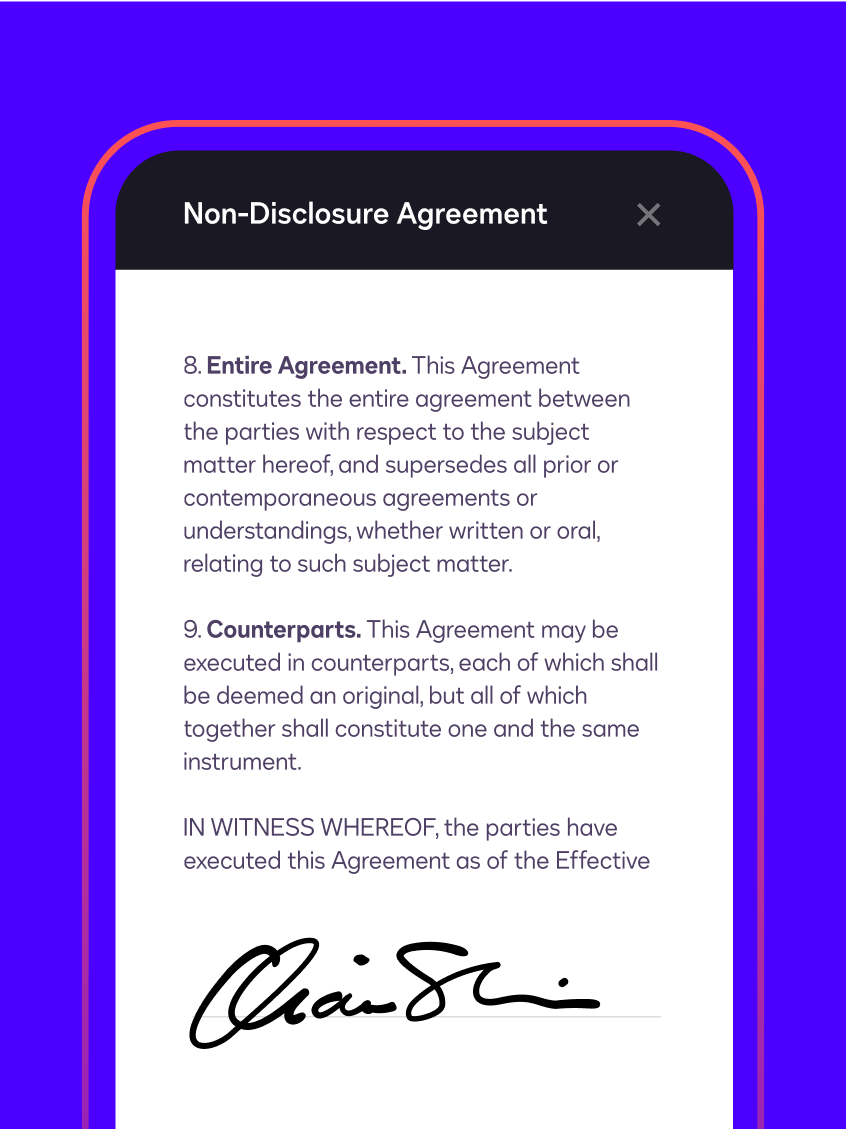




In 2000, the U.S. Electronic Signatures in Global and National Commerce (ESIGN) Act established electronic records and signatures as legally binding, having the same legal effects as traditional paper documents and handwritten signatures. But not all eSignature solutions are created equal. Only DocuSign warrants federal ESIGN Act compliance. Per European Directive 1999/93/EC, DocuSign’s advanced signature is legally admissible and enforceable in the European Union. In fact, almost every civilized country in the world has adopted an electronic signature law, and the vast majority recognize DocuSign’s form of electronic signature as meeting the definition of a valid electronic signature.
- Using DocuSign
- Products
- Communities
- Support
- About Us
Chat with an Expert
Contact Support
FAQ
As the individual requesting that a document be DocuSigned, you control who signs by providing the signer’s email address and other contact information. The document is routed to the signer’s email with a request to sign. DocuSign records the signer’s IP address and a timestamp of the signing activity. In addition, a signer can opt to provide geolocation information at the time of signing. If you require deeper levels of identity management, DocuSign offers additional authentication options, including: access code, knowledge-based ID check and biometric phone identification, among others.
DocuSign gives you complete visibility and control. You can see who’s viewed your document, who’s signed it and who’s on deck to sign next. You’ll receive email notifications when each person has signed, and a notice when the document is complete.
You can use DocuSign to sign any kind of document: .doc, .docx, .pdf, .xls, .xlsx, .txt… anything. DocuSign works with your documents, and is integrated into many of the tools you already use like salesforce.com, Box.net and mobile platforms like the Apple iPhone and iPad. If you have global customers, DocuSign offers browser-aware localization in the world's most common languages covering 66% of the global population to make it even easier and faster to conduct business beyond the more than 50 countries where DocuSign has already been used to securely sign legally-binding documents. DocuSign fits in and helps you close business faster.
No! Your signers don’t need an account, and they don’t need to buy anything.
No. DocuSign lets you create an electronic signature, which is not the same as a digital signature.
An electronic signature, as defined by the Federal ESIGN Act, is an “electronic sound, symbol or process, attached to or logically associated with a contract or other record and executed or adopted by a person with the intent to sign the record” (ESIGN). All 50 states have laws that define electronic signatures in substantially the same way.
Whereas, a digital signature or digital signature scheme is a mathematical scheme for determining the source of a digital message or document. A digital signature by definition is a technology, a method of authenticating. It does not by itself meet the standards of what constitutes a valid electronic signature, nor does it mean that the signer’s identity has been verified. Digital signatures are most often used to apply a digital “seal” to an electronic document in order to make it tamper-evident. In fact, DocuSign uses digital signatures in this way; DocuSign customers and signers have the option to apply a digital signature to a DocuSigned document when the transaction is complete.
So when you need to get a legally-binding signature, make sure you’re using a complete electronic signature solution.
The first time you sign a document, you’ll be asked to create your own signature. You can type in your name and select a font, create one with your mouse, upload a scanned image of your pen-and-paper signature, or use a stylus on your Apple iPad or tablet PC. This signature will be associated with a unique identifier so that every document you sign will be recorded as signed by you and you alone.
To upload an image of your pen-and-paper signature to use as your e-signature:
- Take a photo of your pen-and-paper signature and save it to your hard drive as a PGN, JPG, BMP, or GIF file.
- Log in to your Docusign account.
- Click the Edit link in your DocuSign ID Card. You will be taken to the Manage Identity page.
- On the Manage Identity page, click the Edit link in your ID Card.
- Click New to add a new signature.
- On the New Signature page, click Upload, and then the Browse button and find the image file on your hard drive.
- Once you have found your image, click Adopt to complete the upload and adopt the image as your new signature.
They are an easy way to provide your signers with a way to approve or decline a contract. If Approve is selected the signer will be able to continue signing. If Decline is selected they will be prompted to enter a reason. Once the envelope has been declined the recipient will no longer be prompted to sign the remainder of the envelope. To view the declined reason locate the envelope in your sent items, click on the down arrow next to the status, and click History. The declined reason will be listed in the Additional Info Column.
New Release Features Overview (Click here)
DocuSign is the world’s leading electronic signature solution with more than six million customers having DocuSigned more than 58 million documents. DocuSign is the fastest, easiest, most secure way to sign, track and store documents in the cloud.
- Free – It costs nothing to sign a document, no account is required and your electronic signature holds the same weight as a pen on paper.
- Fast – Available on demand, DocuSign lets you electronically sign and return documents in minutes or hours—not days or weeks.
- Easy – With no need to print, fax or mail, you can easily sign with any Internet-enabled device.
- You can drastically reduce the use of paper and accelerate your business like thousands of other DocuSign customers in virtually every industry - including real estate, travel, e-commerce, insurance, mortgage, and financial services.
Yes, we have user guides and some helpful videos or signup for a free webinar.
Your templates are still available. When preparing your envelope click on the “Choose and Online Document” in the Documents for Signature section.
Preferences are now located in a drop down menu in the upper right hand section in your screen. If you click on your name (next to Help and Logout) a short menu will appear that includes Preferences
- In the upper right hand section of your screen click on your name
- Select Preferences
- Users is on the left hand side of your screen under Account Administration
Template matching is handled by a control on the "Tools -> Options -> IDR" tab in DS Pro. There you will see several settings. Look for the first one:
- Once you’ve entered in a recipient you will see an Identity column
- This is defaulted to email
- To change this, click on the down arrow next to Email
- Select your Identity preference for this user
- Hover over the envelope you wish to work with
- To the right of your envelope, next to the status, you will see a down arrow for Actions
- Click the down arrow to open the menu
- You can select Clone, Correct, Delete, Form Data, History, Open, Resend, or Void
- At the top left of the envelope you will see More Options, a print icon, and a PDF Icon
- If you click on the down arrow next to More Options you will find Void, Correct, and Clone as well as Form Data, View History, and Certificate
- The Print icon opens a PDF of the envelope that you can either print or save to your computer
- The PDF icon gives you some secure file download options.
No, the Dashboard shows your envelopes, usage, and activities.
DocuSign allows you to add an email address more than once with different signer names. Simply enter in the same email address for each person with their name.
DocuSign allows you to have multiple signers on one envelope. An easy way to add yourself as a signer is to click Add Me in the recipients section when preparing your document. Once you’ve sent the envelope you will be able to sign.
Yes, you may need to enable this feature. To do this:
- Log in to your DocuSign account.
- Click on your name in the upper right.
- Select Preferences.
- Under Account Administration select Features.
- Check the box next to Signer can sign on a mobile device.
- Click Save.
If you are unable to remember your DocuSign password select Can’t access your account? located next to the DocuSign log in. This will prompt you to enter in your secret question and then walk you through updating your password.
Yes. DocuSign now allows you to update envelopes that have been sent, but not completed. Documents can be removed and added until someone has completed the signing process. You can edit recipients' information and their signing tasks unless they have completed signing. You can add recipients and signing tasks until the envelope is completed. These new capabilities offer a lot more power and flexibility while you collect electronic signatures on documents. When you open an envelope to correct it, you will see the familiar sending process. Below are the steps to access and open an envelope to correct:
- Hover over the envelope you wish to work with.
- To the right of your envelope, next to the status, you will see a down arrow for Actions.
- Click the down arrow to open the menu.
- Select Correct.
- Once you have clicked on the Correct button, you will be taken to a screen where you can change recipient information such as name or address.
- If you need to add tags or form fields, select Advanced from the bottom of the page.
- This will take you to the envelope preparation section.
- Make your changes to the document and once these are done, click Send. (This will send the corrected version of the envelope to your recipient(s).)
Note: You may receive a "bounce back" email. This occurs when the correct feature sends an email to the old or "corrected" email address explaining that it is no longer active. It then sends out an email to the new email address asking for the user to sign the document.
There are 6 different types of recipients. The recipient type helps define the actions the recipient can take. Choose a recipient type that matches the actions you want the recipient to perform. An envelope must have at least one signer or certified delivery recipient (i.e. carbon copy-only envelopes are not supported). The recipient types are:
- Signer: Use this recipient type if your recipient must sign, initial, date or add data to form fields on the documents in the envelope.
- In Person Signer: Use this recipient type if your recipient is a Signer and is in the same physical location as a DocuSign user who will act as a Signing Host to help the Signer sign the documents using DocuSign.
- Acknowledge Reciept (formerly known as Certified Delivery): Use this recipient type if the recipient must receive the completed documents for the envelope to be completed. This recipient does not need to sign, initial, date or add information to any of the documents.
- Receive a Copy (formerly known as Carbon Copy): Use this recipient type if the recipient will be notified when the envelope has been completed. Carbon copy recipients can be anywhere in the routing order, but are typically last.
- Adress Recipients (formerly known as Agent): This recipient type is only available if the Send to Manage feature is enabled for the sender and document visibility is not enabled. Refer to the Send to Manage documentation for more information about this recipient type.
- Manage Envelope (formerly known as Editor): This recipient type is only available if the Send to Manage feature is enabled for the sender. The Editor recipient type must have a DocuSign account. Refer to the Send to Manage documentation for more information about this recipient type.
Accounts are suspended for a few reasons, the most common being that their credit card needs to be updated. You will need to update the card and pay any past due balance.
To resolve this:
- Log in to DocuSign.
- Click on your name in the upper right and select Preferences from the dropdown menu.
- From the left-hand menu select Billing.
- Enter the new credit card information.
- Select Pay Now.
To adopt a new signature:
- Log in to your DocuSign Console.
- Click on your name in the upper right and select Preferences in the dropdown menu.
- From the left hand menu select Manage Signature.
- Select New and create a new signature.
- Delete your old signature.
- Select New and adopt your new signature.
Please note: If you receive an error message stating you have outstanding envelopes that need to be signed, you will need to go back to your Inbox and sign these envelopes. Change the date range to ‘All’ so you are able to see any envelopes in process outside of the default setting of 30 days. Remember, until your outstanding envelopes are signed, you will be unable to select a new signature.
As a signing convenience, DocuSign smart navigation intelligently directs signers to the required fields automatically. However, you have the option to change how your signers navigate through the document. You can customize smart navigation as follows:
- Log in to your DocuSign Console.
- Click on your name in the upper right and select Preferences in the dropdown menu.
- From the left hand menu select Manage Signature.
- From the left hand menu, select Features.
- In the option for Navigation, select one of the following:
- Navigate required fields (default)
- Navigation blank required fields
- Navigate all Fields.
- Page only
- Page then navigate required fields
- Page then navigate blank required fields
- Page then navigate all fields
The DocuSignID Card creates greater reliance on the signature, and will establish ownership of a user’s electronic signature. The DocuSignID Card will display several key statistics and graphics about the user’s DocuSign signature, system usage and connection with other networks. The DocuSignID Card displays a user’s information, DocuSign sending and signing usage, authentication levels and the ability to connect with other trusted networks such as Facebook®, LinkedIn® and Google®. Users are able to access their DocuSignID card by clicking anywhere their signature appears.
Information on your DocuSignID Card comes from several locations. To edit your DocuSignID Card:
- Log in to your DocuSign Console.
- Click on your name in the upper right and select Preferences in the dropdown menu.
- To update your title and/or company name, select Personal Info.
- To update your address or phone number, select My Account Address.
- To update your photo, select DocuSignID Card.
Yes. All information is saved on our secured site. DocuSign does not sell nor solicits any information.